
01
Upload one photo
Use a clear, front-facing portrait. JPG, PNG and WebP are supported.
Create a Burning Bridges AI video from your photo. Preview the performance template, check credits, and generate your clip. Original audio may change.
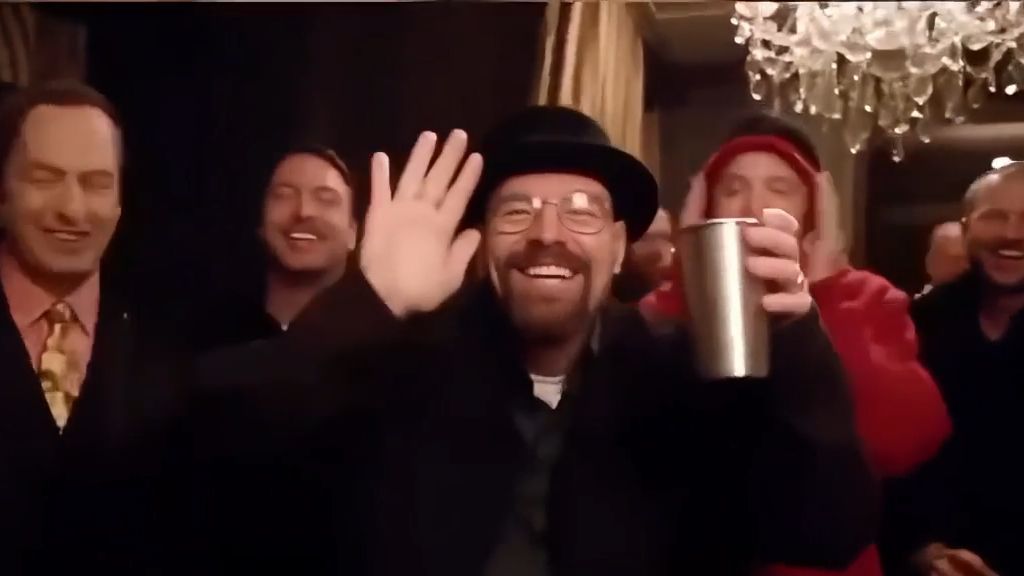
15s · 16:9 · AI-generated audio; original sound may change
One clear photo. A scene with your name on it.
15s · 16:9 · 480p / 720p
A 15-second party performance with a hat-wearing foreground performer. Add your portrait to this prepared scene. AI-generated audio may differ from the preview.
The preview shows the prepared performance, not a guaranteed result from your photo. AI may change facial details, clothing and audio; original sound is not guaranteed.
Burning Bridges performance templateA SIMPLE WORKFLOW
No timeline editing. Start with a photo, check the template and create when you’re ready.
Use a clear, front-facing portrait. JPG, PNG and WebP are supported.
Choose a scene and available quality. Review its duration, format and credit quote.
Sign in to create. Follow the task’s progress and download the finished MP4 from My creations.
YOUR FACE, THE TEMPLATE’S MOVEMENT
Bring a portrait into a prepared video scene. The camera, movement and background come from the template you select.
Burning Bridges T1
A prepared template gives the clip its structure, timing and native format.
Clear facial features give the model a better starting point. Results vary with the photo and scene.
KNOW YOUR OUTPUT
Each scene has a native aspect ratio and supported quality levels. Check them before you create.
The template controls the frame. Choosing a higher resolution changes the output quality, not the scene’s aspect ratio.
Choose quality in the creatorEXPLORE THE SCENES
Watch the available template previews and choose a scene for your video.
A 15-second party performance with a hat-wearing foreground performer. Add your portrait to this prepared scene. AI-generated audio may differ from the preview.
A little care with the input photo goes a long way.
Start with a portrait that looks like you. A straight-on face, even light and a simple background make the important details easier to read.
Let the template do the scene-setting. Its movement and camera framing are already prepared, so you can focus on a suitable photo and the output quality you need.
AI results can vary. Review the finished clip before sharing it, and only use photos and other material you have permission to use.
How to make a Burning Bridges AI videoAvoid deep shadows across the face and strong backlighting.
Choose a front-facing image without sunglasses, heavy blur or a hand covering the face.
A single clear subject helps keep the intended person unambiguous.
Get permission from the person pictured and check the clip before posting.
Three quick checks before you create.
At least 512 pixels on each side, up to 10 MB. Keep facial details sharp.
Check the template’s video preview, duration and aspect ratio before creating.
Read the credit quote and confirm your permission before starting the generation.
CREDITS THAT FIT YOUR PLANS
One-time purchases. Generation costs depend on your chosen template and quality.
Prices in USD. Taxes and the final total are shown at checkout. AI results vary; the template quote is the cost of your selected settings.
Every template begins with a prepared scene. Its background, camera movement and timing provide a consistent starting point for your personal clip.
Choose a scene that fits your photo, review the preview and use the supported settings.
Explore templatesFind the right scene, prepare your photo and understand the credit options.
Photo requirements, creation steps and answers to common questions.
ExploreBrowse templates and compare their previews, format and quality options.
ExploreCompare one-time credit packs and see how generation pricing works.
ExploreUse a sharp, front-facing photo of one adult with even lighting. JPG, PNG and WebP are supported, up to 10 MB, with at least 512 pixels on each side. Avoid group photos and covered faces.
You can browse templates, select a photo locally and review available settings. Sign in to upload the photo and submit a generation. Your prepared photo and settings can be restored after sign-in.
The server quotes the selected template and quality before you generate. Prices may differ between templates. Preparing a photo does not use credits.
A confirmed generation failure restores the credits deducted for that task. Check task status in My creations and your balance and credit history on the account Credits page. A delayed response alone does not confirm failure.
AI can change fine details, clothing, hands and facial features. Clear inputs help, but likeness and movement are not guaranteed. Review every result before sharing it.
Only use photos you have the rights to use and adult subjects who have explicitly agreed. Deceptive impersonation, non-consensual content and infringement are prohibited.
One portrait, a prepared scene, and a little movement. Start with your photo.
Create video